Safety first. The following information is for educational purposes. CNC machining involves high-speed rotating cutters. Always wear eye and ear protection, never leave a running machine unattended, and verify all feeds and speeds for your specific setup.
The right CNC CAM software shifts what your hardware can produce more than any spindle upgrade or workholding improvement. The CAM software decides every toolpath, every plunge, every feed rate, every climb-or-conventional cut decision — and weak CAM produces weak results on capable hardware. This guide compares the four CAM applications that matter for desktop CNC owners in 2026 (Fusion 360, Vectric VCarve, Carbide Create, and Carveco Maker), shows which fits which workflow, and walks through the settings that meaningfully change machining outcomes.
Most desktop CNC owners pick CAM software because it came bundled with their machine. Carbide Create with Shapeoko, Carveco Maker with Onefinity, the free Fusion 360 personal license with everything else. That works for the first month. By the time you start cutting aluminum, doing 3D carving, or running production, CAM differences become the difference between a finished part and a scrapped one. The four applications below cover 95% of desktop CNC CAM use in 2026.
What CNC CAM Software Actually Does
CAM software converts a 3D model or 2D drawing into G-code: the line-by-line motion commands your CNC follows. In ~40 words: CAM decides toolpath geometry (where the bit moves), feeds and speeds (how fast), step-over and step-down (chip load), climb vs conventional cut direction, and lead-in/lead-out (entry and exit motion). Hardware can’t fix what CAM gets wrong.
Modern CAM handles three classes of decision: 2D operations (pocket clearing, contour cutting, drilling), 3D operations (roughing and finishing curved surfaces), and material-aware adjustments (different feeds and speeds per material). The differences between Fusion 360, VCarve, Carbide Create, and Carveco are mostly about how aggressive each is at automating these decisions and how much manual control they expose.
If you’re new to CNC entirely, see our Desktop CNC Explained for context on how spindles, end mills, and toolpaths interact before diving into CAM-specific settings below.
Fusion 360 vs VCarve vs Carbide Create vs Carveco (2026 Comparison)
The four major CAM ecosystems serve overlapping but distinct desktop CNC users. Fusion 360 leads on 3D capability and engineering features. Vectric VCarve dominates the woodworking-CNC market. Carbide Create is the simplest entry point. Carveco fits between VCarve and Fusion 360 for woodworking professionals.
| Feature | Fusion 360 | Vectric VCarve Pro | Carbide Create | Carveco Maker |
|---|---|---|---|---|
| Best for | Engineering, 3D parts, metals | Woodworking, signs, V-carving | Shapeoko beginners | Woodworking pro alternative |
| Price | Free (personal) / $545/yr (pro) | $249 (Desktop) / $699 (Pro) | Free (Pro: $299) | $15/mo subscription |
| 2D operations | Strong | Strong | Strong | Strong |
| 3D toolpaths | Best in class | Limited (Aspire only) | Pro only | Limited |
| V-carving | Available, awkward | Best in class | Pro only | Strong |
| Material library | Generic; user-customizable | Excellent for wood | Carbide 3D-specific | Wood-focused |
| Toolpath simulation | Excellent | Good | Basic | Good |
| Post-processor support | Many (community-built) | Many (preset) | Carbide 3D + few | Many (preset) |
| Learning curve | Steep | Moderate | Easy | Moderate |
The single biggest factor in CAM choice: what you’re cutting. Aluminum, brass, and 3D-curved parts strongly favor Fusion 360. Wood signs, plaques, and V-carved decorative work strongly favor Vectric VCarve. Simple Shapeoko 2D pocket-and-contour work runs fine on Carbide Create. The same hardware can produce dramatically different results depending on which CAM application you choose for a given job.
Fusion 360: The Engineering Standard
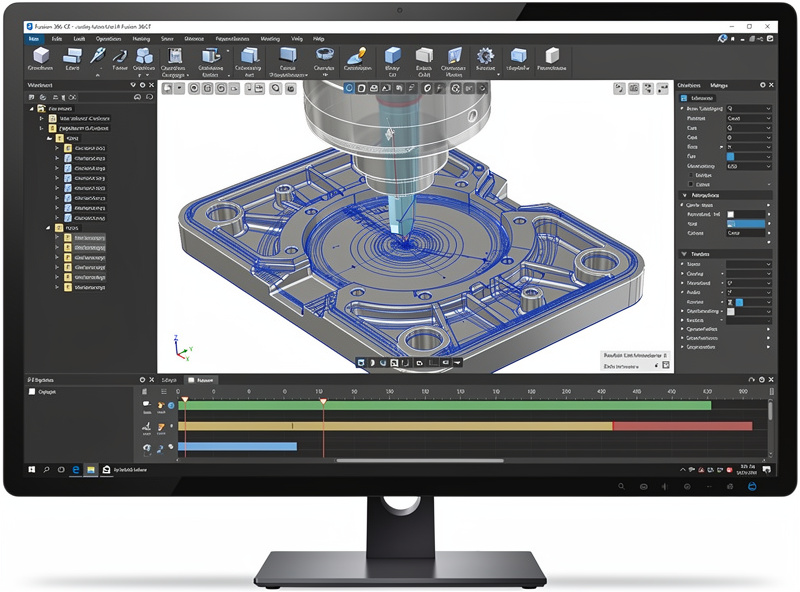
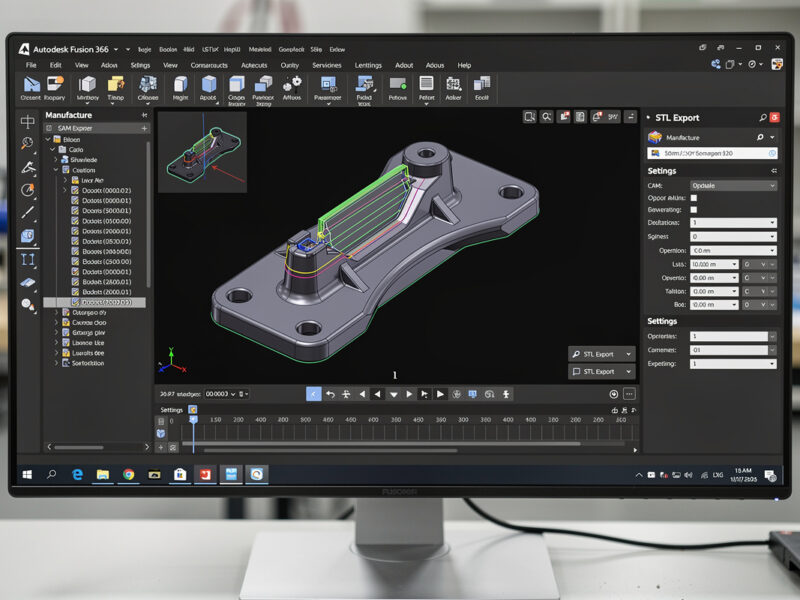
Fusion 360 is Autodesk’s CAD/CAM application that combines parametric 3D modeling with full CAM toolpath generation. The free “Personal Use” license covers desktop CNC users running fewer than 10 active projects at a time — adequate for most hobbyists. The paid version unlocks unlimited projects and advanced features.
Fusion 360’s CAM is the strongest 3D toolpath generator in the consumer / prosumer market. Roughing strategies (parallel, adaptive clearing, pocket), finishing strategies (parallel, scallop, contour), and 3D adaptive clearing — covered in our 3D roughing and finishing toolpaths guide all produce production-quality toolpaths. For 3D-carved parts (relief carvings, sculpted designs), Fusion 360 leads VCarve significantly.
For aluminum, brass, and other metals, Fusion 360’s adaptive clearing strategy is the standard for desktop hobby aluminum work. The strategy maintains constant chip load through the cut, avoiding the chatter and tool breakage that simpler strategies produce on metals. Our Fusion 360 hobby CNC guide walks through setup including adaptive clearing.
The cost: Fusion 360 has a steep learning curve. The combined CAD + CAM workflow requires learning both halves. Plan 20-40 hours to become genuinely productive. The official Autodesk training and the YouTube channel of “NYC CNC” cover the desktop hobby use case extensively. See our CNC tooling fundamentals guide for the feeds-and-speeds math that interacts with Fusion 360’s toolpath strategies.
Vectric VCarve Pro: The Woodworking Standard
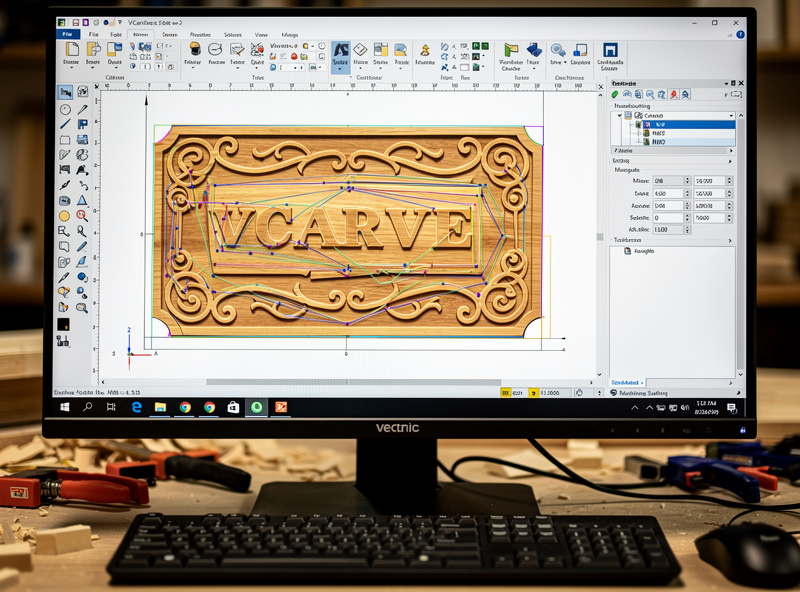
Vectric VCarve Pro is the dominant CAM for woodworking-focused desktop CNC. If you’re cutting signs, plaques, V-carved letters, decorative panels, or guitars — VCarve is the right answer. The application is purpose-built for these workflows and excels where Fusion 360 feels grafted-on.
VCarve’s killer features: V-carving toolpaths that handle variable-depth letter carving cleanly, 2D toolpath ordering optimized for wood machining, prismatic carving (the technique that makes flat letters appear three-dimensional), and a wood-focused material library with measured feeds and speeds.
Our Carbide Create vs VCarve comparison covers the upgrade decision in depth. Our VCarve Desktop review covers 50+ production wood sign jobs. VCarve Desktop ($249) and VCarve Pro ($699) differ in the maximum job size and the inclusion of advanced features (true V-shape inlays, 3D rough/finish toolpaths). For desktop CNC users with sub-1m work areas, Desktop is sufficient; Pro is worth the upgrade for serious woodworking businesses or anyone working with 3D reliefs.
The cost: VCarve loses to Fusion 360 on metal machining and 3D parts. The 3D capabilities exist but feel limited compared to Fusion 360’s adaptive clearing. For users who do mixed work (wood + occasional aluminum), running Fusion 360 for the metal jobs and VCarve for the wood jobs is the standard professional approach.
Carbide Create: The Simple Entry Point
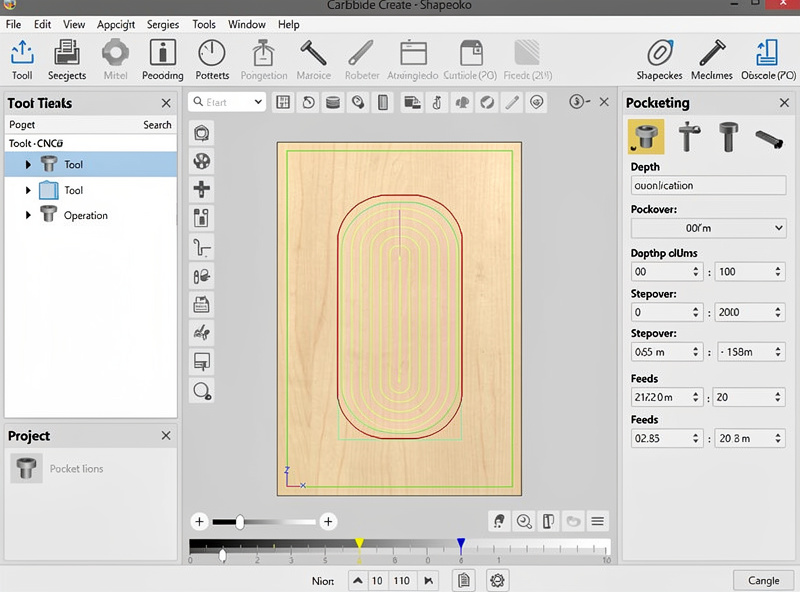
Carbide Create is the free CAM application Carbide 3D ships with every Shapeoko. It’s purpose-built for that hardware and produces good results within its scope. The interface is the simplest of the four CAMs covered here — beginners can produce finished parts within an hour.
Carbide Create handles 2D operations cleanly: pockets, contours, drilling, V-carving with a V-bit, and basic engraving. The integrated material library has tested feeds and speeds for common woods and acrylics on Shapeoko hardware. For straightforward shop signs, basic name plaques, and simple Shapeoko jobs, Carbide Create is sufficient indefinitely.
The Pro version ($299) adds 3D toolpaths, but the 3D capability is basic compared to Fusion 360’s. Most users who outgrow Carbide Create’s free version skip Pro and upgrade directly to Fusion 360 (free for personal use) or VCarve (paid but woodworking-optimized).
Use Carbide Create when: you have a Shapeoko, you’re new to CNC, and your work is simple 2D operations. For other free options including Estlcam and FreeCAD, see our free CNC CAM software guide. Stay with it as long as it covers your needs — there’s no shame in not switching to “more advanced” software if Carbide Create produces what you want.
Carveco Maker: The Subscription Alternative
Carveco is a commercial CAM application descended from ArtCAM (which Autodesk discontinued in 2018). Carveco Maker is the entry-level subscription tier at $15/month, positioned as a VCarve alternative for woodworking-focused users.
Carveco Maker’s strengths: subscription pricing (lower entry cost than VCarve’s perpetual license, easier to try out), strong V-carving capabilities, decent 3D relief support, and active development. For users who want to try a VCarve-like workflow without the $249-699 upfront cost, Carveco’s $15/month is reasonable.
The trade-off: Carveco’s user base is smaller than VCarve’s, the community resources are thinner, and Vectric’s tutorials and forums are significantly more developed. For serious woodworking CAM, VCarve’s ecosystem advantage pays back over Carveco’s lower price.
Use Carveco when: you want VCarve-like capabilities at lower entry cost; you prefer subscription pricing; you don’t mind the smaller community. Switch to VCarve when production work begins or when you need community resources for specific techniques.
How to Choose: Decision Framework
The choice usually reduces to what you’re cutting and what hardware you have:
Aluminum, brass, or 3D-curved parts: Fusion 360. The adaptive clearing strategy is essential for hobby aluminum machining; the 3D toolpaths are the strongest in this category.
Wood signs, plaques, V-carved letters, decorative panels: Vectric VCarve. Purpose-built for these workflows; produces cleaner V-carved letters and faster wood toolpaths than alternatives.
Shapeoko 4 or 5 owner doing simple 2D wood work: Carbide Create (free). Stays sufficient for many users indefinitely.
Onefinity or Sienci LongMill owner with mixed work: VCarve for woodworking, Fusion 360 for occasional metal/3D. Both have post-processors for these machines.
Anyone wanting subscription pricing: Carveco Maker for woodworking, Fusion 360 paid for engineering. Both are reasonable monthly-cost alternatives to perpetual licenses.
Most production CNC shops run multiple CAM applications. Wood projects in VCarve, metal projects in Fusion 360, simple jobs in whatever opens fastest. There’s no single “best” CAM — the question is which CAM best fits each job.
CAM Settings That Actually Matter
Across all four applications, the same handful of settings drive 80% of result quality. Tuning these well in any CAM beats running another CAM with defaults.
Feeds and speeds: The single biggest CAM decision. Wrong feeds and speeds produce tool breakage, poor surface finish, or burnt wood. Always start from the manufacturer’s recommended values for your specific bit and material, then adjust based on actual machining performance. Our CNC tooling fundamentals guide covers the feeds and speeds math in depth.
Step-down (depth per pass): For 1/4″ end mills in hardwood, 0.05-0.10″ per pass is the conservative starting range. Going deeper increases risk of tool deflection and breakage. Going shallower wastes time without quality improvement. Most CAM applications have material-specific defaults — start there and adjust.
Step-over (width of cut for finishing): 5-10% of bit diameter for finish passes; 30-50% for roughing. Finer step-over produces smoother surfaces but takes longer. The trade-off is one of the biggest CAM decisions on aesthetic surfaces.
Climb vs conventional cut direction: Climb cutting (the bit’s rotation matches the feed direction) is preferred on rigid CNC machines for better surface finish. Conventional cutting is safer on flexible machines because the cutting forces push the bit into the material rather than pulling it. Most desktop CNCs handle climb cutting fine; check before committing on your specific machine.
Lead-in / lead-out: How the bit enters and exits the cut. Plunge entry (straight down) is fast but stresses the bit; ramp entry (angled descent) is gentler. For aluminum, always use ramp or helical entry to avoid breakage. For wood, plunge is acceptable.
Post-Processors and G-Code Output
The post-processor is the bridge between CAM-generated toolpaths and your specific CNC machine’s G-code dialect. Each CNC controller (GRBL, Mach3, LinuxCNC, FluidNC, Carbide Motion) reads G-code slightly differently. The post-processor in CAM software outputs G-code matched to your controller.
Fusion 360 has the broadest post-processor library, with community-maintained posts for every major desktop CNC controller. Common ones: GRBL (most desktop CNCs), Carbide Motion (Shapeoko native), LinuxCNC, Mach3, FluidNC. Switching post-processors changes the G-code output without changing the toolpaths.
VCarve, Carbide Create, and Carveco have narrower but well-tested post-processor selections. VCarve specifically supports Carbide Motion, GRBL, Mach3, and several Vectric-specific posts; Carveco covers similar ground.
Wrong post-processor selection produces G-code your CNC can’t execute, or worse, executes incorrectly (wrong feed rates, wrong unit conversion, missing tool change commands). Always verify the post matches your controller before sending the first job. The complete CNC workflow guide covers post-processor verification in the broader workflow context.
When to Switch CAM Software
The right time to switch CAM depends on what you’ve outgrown rather than which CAM is “best.”
Switch from Carbide Create to Fusion 360 when: 3D toolpaths become important (Carbide Create’s 3D is limited), aluminum machining starts (Carbide Create lacks adaptive clearing), or production work begins (Fusion 360’s tool library and templates save real time on repeat jobs).
Switch from Carbide Create to VCarve when: Woodworking sign and plaque production becomes regular (VCarve’s V-carving and prismatic carving beat Carbide Create’s by a wide margin). The $249 license pays back within a few production jobs.
Stay with Carbide Create indefinitely if: You’re a hobbyist running occasional Shapeoko jobs in 2D. There’s no need to upgrade if Carbide Create produces what you want.
Most production CNC shops own multiple CAM applications. The hardware doesn’t care which CAM generated the G-code; the choice is purely about which CAM produces the best G-code for that specific job. See our CNC projects for beginners guide for project types that map to each CAM strength.
Frequently Asked Questions
Which CAM software is best for beginners?
Carbide Create for Shapeoko owners (free, simple, hardware-matched). Fusion 360 free Personal license for everyone else with longer-term ambitions. Both produce good results on simple jobs; Fusion 360 has more growth room as skills develop. VCarve is too expensive as a first CAM for most beginners.
Is Fusion 360 still free for personal use?
Yes, with limitations. The free Personal Use license allows up to 10 active projects, limits export to specific formats, and disables some advanced features. For desktop CNC hobbyists running individual projects, the free tier is sufficient indefinitely. Commercial use or running many projects simultaneously requires a paid subscription.
Can VCarve cut aluminum?
Technically yes, but Fusion 360 produces better results on aluminum due to adaptive clearing strategies VCarve lacks. VCarve’s toolpaths are optimized for wood machining where chip evacuation is easier. For occasional aluminum cutting, VCarve works; for serious aluminum machining, Fusion 360 is the right tool.
What’s the difference between VCarve Desktop and VCarve Pro?
VCarve Pro adds: larger maximum job size (up to 8′ × 4′ vs Desktop’s 25′ × 25′), advanced V-shape inlays, 3D rough and finish toolpaths, and import of EPS / AI files. For desktop CNCs with work areas under 1m, Desktop is sufficient. Pro is worth it for production woodworking businesses or anyone serious about 3D relief carvings.
Why does my CNC sound terrible during the cut?
Almost always a feeds-and-speeds problem. Chatter, screaming, or excessive vibration indicates the bit is being pushed wrong (too fast feed, too slow spindle, or wrong direction). Stop the job, recalculate from manufacturer specs for your bit and material, and run a test cut on scrap before committing to expensive material.
Can I use the same CAM software for laser cutting and CNC?
No — laser cutting and CNC milling have fundamentally different toolpath requirements. Laser cutters use 2D vector paths with power/speed; CNC mills need 3D toolpaths with feed rates, plunge depths, and tool change commands. Use dedicated laser software (LightBurn, xTool CS) for laser work and CNC CAM (Fusion 360, VCarve) for milling.
Should I subscribe to Fusion 360 paid or buy VCarve?
Depends on what you cut. If 70%+ of your work is wood signs and decorative panels, VCarve’s $249 perpetual license beats $545/year Fusion 360 long-term. If 70%+ is metals or 3D parts, Fusion 360’s adaptive clearing pays back the subscription. For mixed work, run free Fusion 360 personal license + VCarve perpetual.