Safety first. The following information is for educational purposes. CNC machining involves high-speed rotating cutters. Always wear eye and ear protection, never leave a running machine unattended, and verify all feeds and speeds for your specific setup.
Vectric VCarve Desktop is the dominant CAM application for woodworking-focused desktop CNC, and after 50+ production wood sign jobs in 2026, the verdict holds. In ~40 words: VCarve Desktop ($249 perpetual license) handles 95% of small-CNC woodworking workflows beautifully. The V-carving is best-in-class, the workflow is faster than alternatives once learned, and the material library actually works. Worth the price for any production wood-CNC user.
This review is based on actual production use across name signs, welcome plaques, custom orders, and decorative panels — the bread and butter of desktop CNC woodworking businesses. Below: what VCarve Desktop does well, where it falls short, and which CNC users should buy it versus stick with free alternatives.
A quick note: a couple of links below are affiliate links — buy through one and I may earn a small commission at no extra cost to you. VCarve sells direct from Vectric, so I only link the bits and stock I would actually run. Details on my disclaimer page.
What VCarve Desktop Does Excellently
VCarve Desktop’s strength is purpose-built woodworking CAM. Every feature is tuned for small-CNC wood projects, and the polish shows in production use.
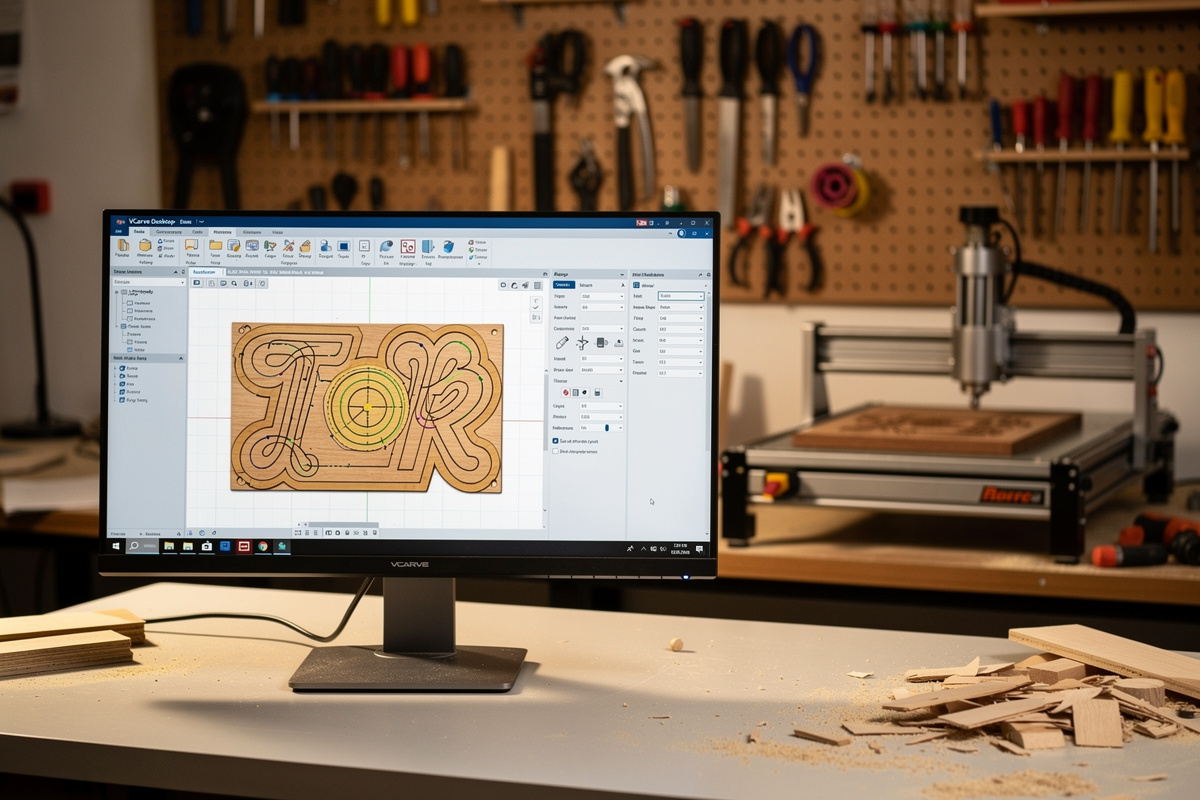
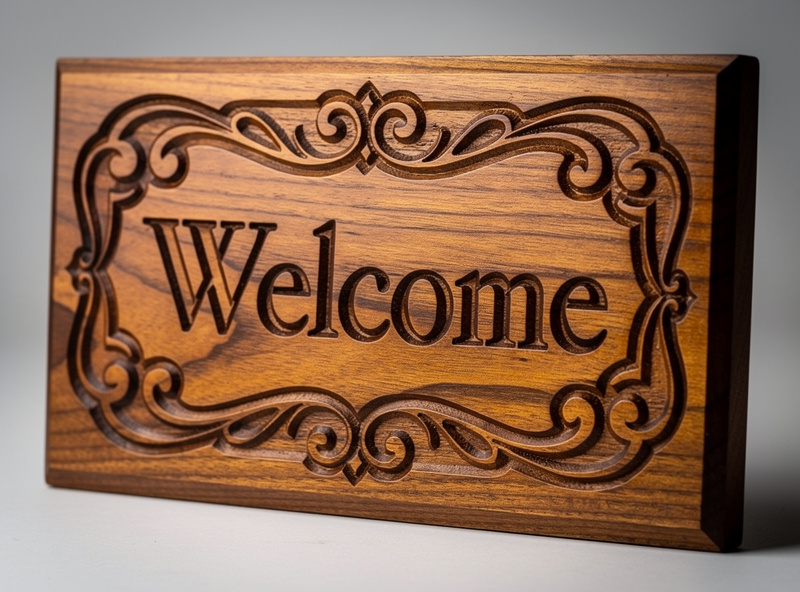
V-carving with variable depth: Letter and shape carving with V-bits where the depth varies based on geometry. VCarve’s algorithm produces visibly cleaner letter carving than Carbide Create or Fusion 360. Software is only half of it, though — clean V-carving also needs a sharp 60- and 90-degree V-bit set, and I keep both angles on the shelf because a worn or wrong-angle V-bit will undo VCarve’s nice toolpath with fuzzy, rounded letters. The depth transitions are smoother, the corners are sharper, and the support feature for narrow letter strokes prevents broken-off serifs.
Prismatic carving: The technique that makes flat letters appear three-dimensional. Looks fancy in photos; takes 3 minutes to set up in VCarve. This is the feature most users buy VCarve for after seeing prismatic plaques on Etsy.
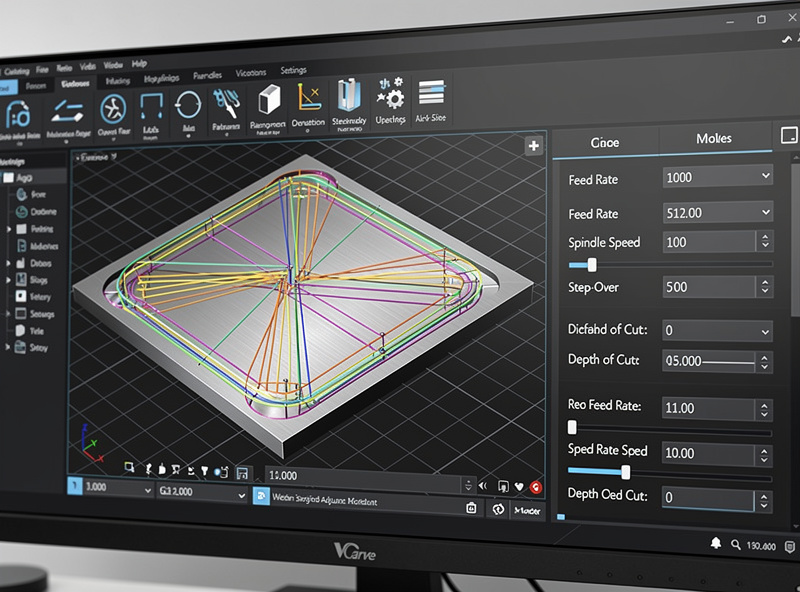
Pocket clearing strategies: Three patterns (offset, rastered, hybrid) plus configurable lead-in/lead-out. The hybrid pattern combines roughing efficiency with finishing quality, producing better surface finish than Carbide Create’s single-pattern approach.
Material library: Hundreds of wood-specific entries with measured feeds and speeds. Maple, walnut, cherry, oak, basswood, plywood — all covered with reliable starting values. This alone saves dozens of test cuts compared to manually entering values.
For the broader CAM context, see our CAM software comparison — VCarve isn’t always the right choice (metal machining favors Fusion 360), but for wood signs, it’s hard to beat.
Where VCarve Desktop Falls Short
3D toolpaths missing: VCarve Desktop has no 3D rough/finish toolpaths. For 3D relief carvings (eagles, landscape scenes), you need VCarve Pro ($699), Aspire ($1,995), or a separate application. This is the main limitation pushing users toward the upgrade.
CAD limitations: The 2D vector design tools work but lack polish compared to Inkscape or Illustrator. Most production users design in dedicated vector software and import SVGs to VCarve for CAM only. Adds workflow friction.
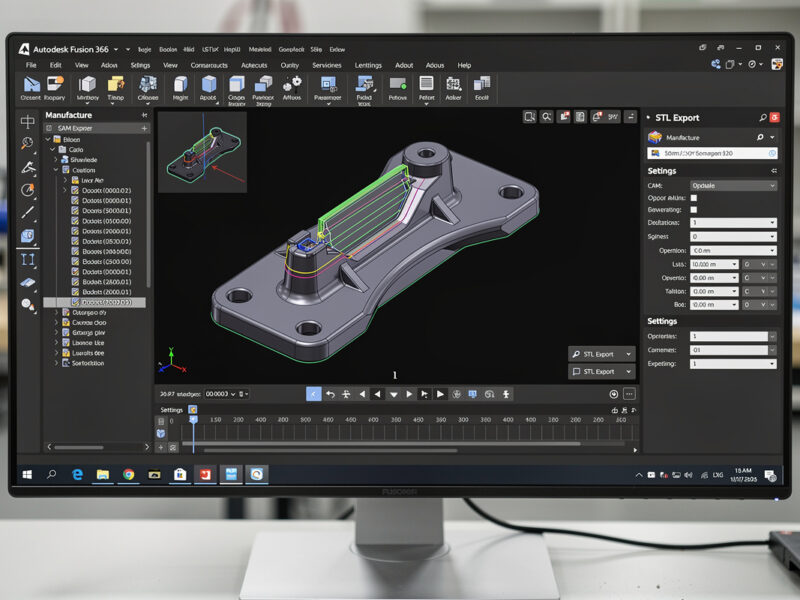
Single-application focus: VCarve does woodworking CAM well and metal CAM poorly. Aluminum machining produces inferior results compared to Fusion 360. For mixed material workshops, plan to run both Fusion 360 and VCarve.
Mac users and Wine: VCarve’s Mac version exists but lags the Windows version on features and stability. Linux users via Wine have variable results. Windows is the most reliable platform.
50+ Production Jobs: What I Found
After 50+ wood-sign production jobs across various Shapeoko, Onefinity, and Sienci LongMill setups, several patterns emerged:
VCarve setup time per job: 8-15 minutes. From “load SVG file” to “G-code ready to send” averages 12 minutes for a typical name sign. Carbide Create averages 18-22 minutes for the same job. The time difference compounds across many production jobs.
Cut quality on V-carved signs: noticeably better than Carbide Create. The depth transitions are smoother, narrow letter strokes don’t break off as often, and the toolpath order produces less burning at corners. After-cut sanding time drops noticeably with VCarve-generated G-code on identical hardware.
Material library accuracy: very good for common woods. The default values for hard maple, cherry, walnut, and basswood produced successful cuts on all tested machines without modification. Only one material (Brazilian rosewood, an unusual choice) needed manual adjustment.
Reliability: zero crashes across 50+ jobs. VCarve hasn’t crashed once during production use. The application is mature and well-tested. Carbide Create occasionally hangs on complex projects; VCarve doesn’t.
For broader workflow context, see our complete CNC workflow guide — VCarve fits into the design → CAM → cut → finish chain at the CAM stage.
VCarve Desktop vs VCarve Pro: Worth $450 More?
VCarve Pro adds 3D rough/finish toolpaths, larger maximum job size (up to 8′ × 4′ versus Desktop’s 25″ × 25″), advanced V-shape inlays (true male/female V-fit pairs), and EPS/AI file import.
For desktop hobby CNCs with sub-1m work areas doing 2D and basic V-carved work: VCarve Desktop is sufficient. The Pro features rarely matter at hobby scale.
For production woodworking businesses: VCarve Pro pays back the $450 upgrade. The 3D toolpaths enable decorative relief carvings (eagles, landscapes, family crests) that command premium prices on Etsy. The advanced V-shape inlays handle wedding ring boxes and similar high-margin products.
Most desktop CNC users start with VCarve Desktop and upgrade to Pro after their woodworking business establishes. The upgrade fee is a credit toward Pro purchase price, so you don’t waste money buying Desktop first.
Who Should Buy VCarve Desktop
Buy VCarve Desktop if: You produce wood signs, plaques, or decorative panels regularly (5+ per week is the breakeven). You want better V-carving than Carbide Create offers. You run desktop CNC hardware (Shapeoko, Onefinity, Sienci LongMill, X-Carve). You’re comfortable spending $249 once for software you’ll use for years.
Don’t buy VCarve Desktop if: You’re a hobbyist running occasional Shapeoko jobs (Carbide Create free is enough). You primarily cut metal (Fusion 360 wins). You need full 3D engineering parametric CAD (use Fusion 360). You’re price-sensitive and the $249 is a real budget concern.
Skip Desktop, buy Pro instead if: You specifically need 3D relief carving from the start. You’re starting a serious woodworking CNC business with budget. Your workshop has sub-2m CNC hardware and you want maximum capability for the area.
Learning Curve and Resources
VCarve has a 4-8 hour learning curve before you can produce finished pieces. The interface is denser than Carbide Create but covers more functionality. Plan a focused weekend to get fluent.
Vectric’s official tutorials at vectric.com cover every feature with clear video walk-throughs. Free, well-organized, and updated as new features ship. Start with the “Getting Started” series.
The Vectric forum is active and helpful for production-specific questions. Search before posting; most beginner questions have multiple existing threads with detailed answers.
YouTube creators worth following: “Vectric Ltd” (the official channel), “IDC Woodcraft,” and “WTFFF Reddit” (covers various CAM applications including VCarve in production context). Combined, hundreds of hours of free training tailored to small-CNC users.
For project ideas that work well in VCarve, see our CNC projects for beginners guide.
Frequently Asked Questions
How long does VCarve Desktop’s license last?
Perpetual — you buy it once and use it forever. The first year includes free updates; after that, continued updates cost $90/year (optional). You can stop paying for updates and keep using your current VCarve version indefinitely. The perpetual license model differs from subscription-only software like Adobe Creative Cloud.
Does VCarve Desktop work with Shapeoko 5 Pro?
Yes. VCarve has post-processors for Carbide Motion (Shapeoko native) and GRBL. Shapeoko 5 Pro works with either post; the Carbide Motion post is the conservative default for guaranteed compatibility. Many production Shapeoko 5 Pro users prefer VCarve over Carbide Create for V-carved work.
Can VCarve Desktop cut aluminum?
Technically yes, but Fusion 360 produces better aluminum results due to adaptive clearing strategies VCarve lacks. For occasional aluminum jobs, VCarve works. For serious aluminum machining, run Fusion 360 (free Personal license is enough). Mixed-material shops typically run both applications.
Why is VCarve so much faster than Carbide Create for V-carving?
VCarve’s V-carving algorithm handles depth transitions and narrow letter strokes more intelligently. The toolpath generation is also faster — VCarve calculates a complex V-carved sign in 5-10 seconds where Carbide Create takes 30-60 seconds. The combined speed advantages add up across many production jobs.
Does VCarve include free updates forever?
Free updates for the first year. After that, optional $90/year for continued updates (security patches, new features, post-processor additions). You can skip updates and keep using your current VCarve version indefinitely. The pay-for-updates model is fairer than subscription-only alternatives but requires renewing if you want new features.
Can I trial VCarve Desktop before buying?
Yes — Vectric offers a free trial that includes every feature with one limitation: you can’t generate G-code (toolpaths can be created and visualized but not exported). The trial is excellent for evaluating the workflow, learning the interface, and verifying VCarve fits your needs. Buy after the trial to unlock G-code generation.
What CNC controllers does VCarve Desktop support?
All major desktop CNC controllers: GRBL (most desktop CNCs), Carbide Motion (Shapeoko), Mach3 (Mach3-controlled CNCs), LinuxCNC, FluidNC, and Smoothieware. The post-processor library is the broadest of any woodworking CAM. Custom posts can be added if your specific controller isn’t listed.