Safety first. The following information is for educational purposes. CNC machining involves high-speed rotating cutters. Always wear eye and ear protection, never leave a running machine unattended, and verify all feeds and speeds for your specific setup.
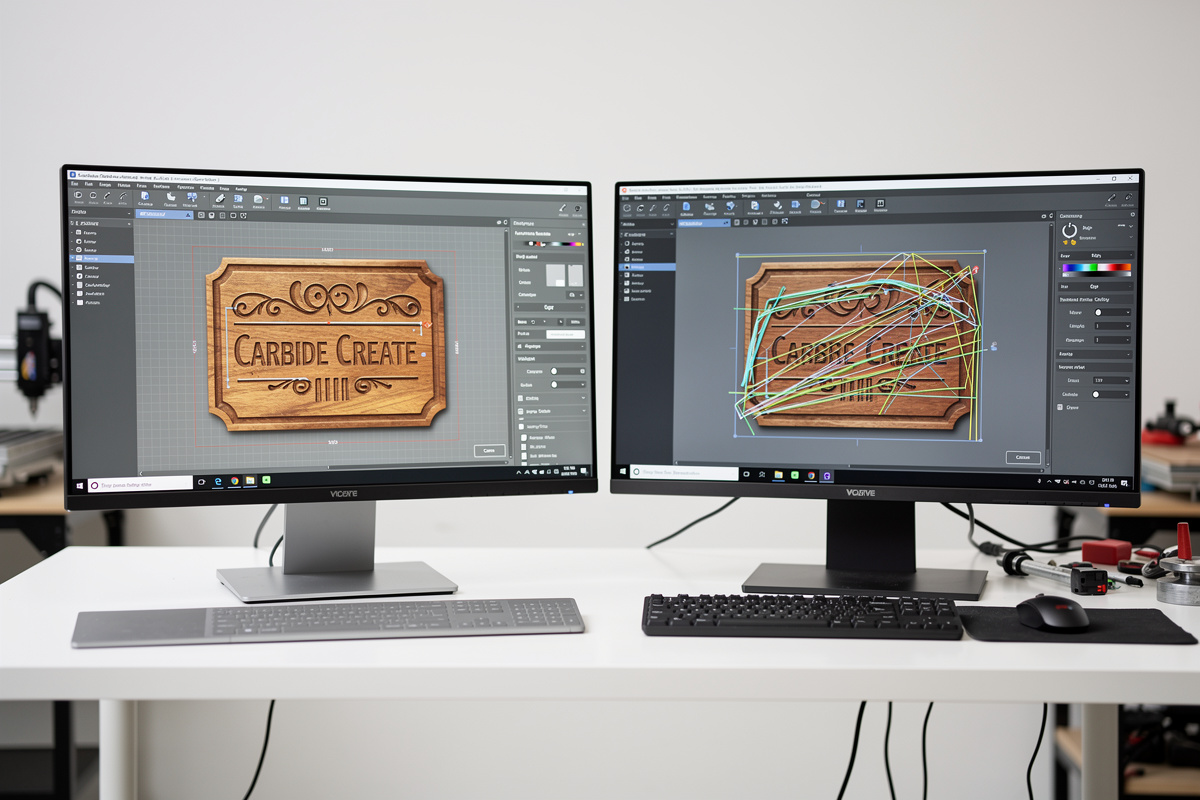
Carbide Create vs VCarve is the question every Shapeoko owner asks when they outgrow Carbide Create’s free version. In ~40 words: stay with Carbide Create if you do simple 2D pockets and contours; upgrade to VCarve when V-carving production wood signs, doing 3D reliefs, or running multiple jobs daily. The $249 VCarve license pays back in roughly 10-15 production wood-sign jobs through faster setup and cleaner toolpaths.
This comparison covers the dimensions that actually drive the upgrade decision: 2D operations, V-carving capability, 3D toolpaths, material library quality, learning curve, and price/value. Each section is based on production use of both applications across various Shapeoko, Onefinity, and Sienci LongMill setups in 2026.
2D Operations: Pockets, Contours, Drilling
For basic 2D operations — pocket clearing, contour cutting, drilling — the two applications produce comparable results. Carbide Create’s interface is simpler; VCarve’s is denser with more options. For users doing only 2D work, this is largely a wash.
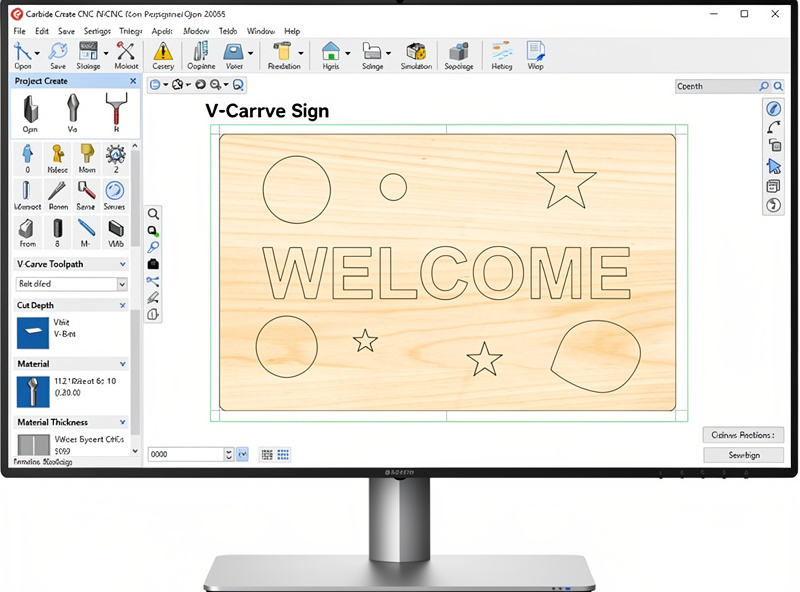
VCarve’s edge on 2D: better lead-in/lead-out control (helps reduce burn marks on wood), more granular pocket-clearing strategies (rastered, offset, hybrid), and faster batch operations on multiple shapes simultaneously. Carbide Create handles the same operations but with fewer options exposed.
For new CNC users, Carbide Create’s simplicity is an advantage — you produce results faster without learning every option. For users who’ve outgrown the basics, VCarve’s depth pays back through better cut quality and faster job setup. The break-even point is roughly 20-30 hours of CNC use.
V-Carving: VCarve’s Killer Feature
V-carving is where VCarve dominates Carbide Create decisively. V-carved letter and shape carving — where a V-bit varies depth based on the geometry — is VCarve’s namesake feature and the reason it exists.
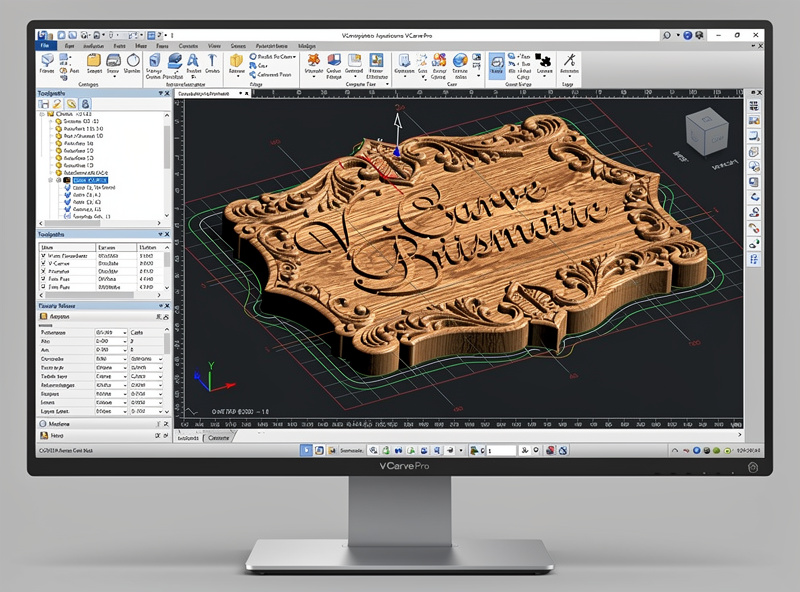
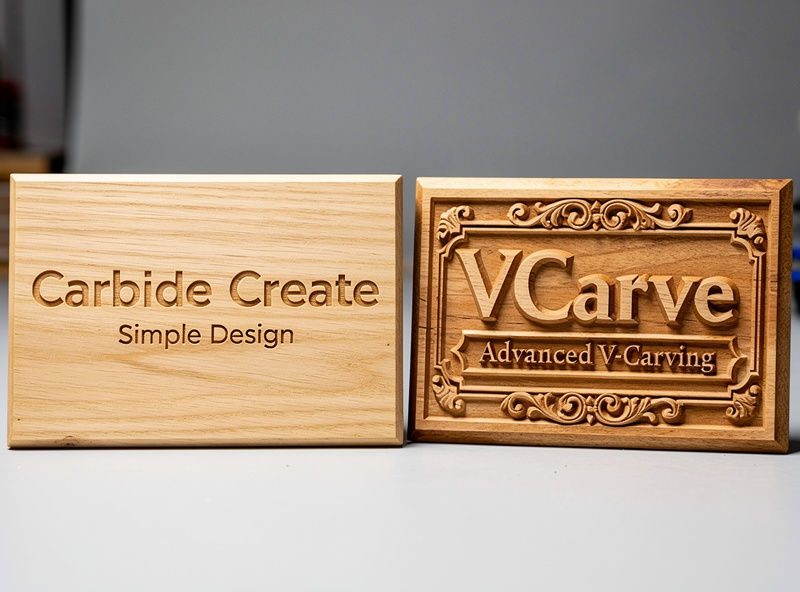
VCarve’s V-carving handles complex geometry that Carbide Create can’t match: variable-depth letter carving with smooth depth transitions, prismatic carving (creating three-dimensional appearances on flat letters), and complex inlays where a male V-shape fits into a female V-pocket.
Carbide Create’s V-carving (Pro version only — $299 annual subscription) handles simple V-carved text and basic shapes. It works for typical name signs and welcome signs. For decorative wood plaques with elaborate lettering, VCarve’s V-carving produces visibly better results.
For users producing wood signs commercially, VCarve’s V-carving alone justifies the upgrade. A name sign that takes 12 minutes in VCarve might take 22 minutes in Carbide Create with rougher V-carved letters. Across 20 production signs per week, the time savings pay for VCarve within a month.
3D Toolpaths and Relief Carving
3D toolpaths — for relief carvings, sculpted decorative pieces, terrain models — favor VCarve over Carbide Create but lose to Fusion 360 for engineering 3D parts.
VCarve Desktop ($249) lacks 3D toolpaths; VCarve Pro ($699) and the related Aspire ($1,995) include 3D rough and finish toolpaths optimized for woodworking. For decorative 3D reliefs (eagles, landscape scenes, family crests), VCarve’s 3D capability is solid.
Carbide Create Pro ($299) added 3D toolpaths in version 7.x but the implementation is limited compared to VCarve Pro. Acceptable for occasional 3D relief but loses to VCarve on production-quality decorative pieces.
For 3D engineering parts (mechanical components with curved surfaces), Fusion 360’s adaptive clearing beats both VCarve and Carbide Create. The right CAM depends on what 3D geometry you’re cutting — VCarve for decorative wood reliefs, Fusion 360 for parametric engineering parts. Our CAM software comparison covers when to switch between applications.
Material Libraries
Carbide Create’s material library is curated by Carbide 3D specifically for Shapeoko hardware. The values are conservative and reliable — they produce successful cuts without tool breakage on stock Shapeoko machines.
VCarve’s material library is broader, covering many wood species and most desktop CNC hardware. The values come from Vectric’s testing and the active user community. Quality varies — Vectric-tested values are excellent, community-contributed values vary.
For Shapeoko owners specifically, Carbide Create’s library has the edge because it’s tested on the same hardware. For Onefinity, Sienci, X-Carve, and other non-Shapeoko hardware, VCarve’s library covers more situations. Both libraries work as starting points; both require tuning for your specific setup.
Learning Curve
Carbide Create wins decisively on learning curve. New CNC users typically produce finished pieces within 30-60 minutes of installing. The interface is clean, the workflow is linear, and the official Carbide 3D documentation is excellent.
VCarve’s interface is denser and presents more options. Plan 4-8 hours of learning before producing finished pieces. The Vectric tutorials are comprehensive but assume some familiarity with CNC concepts.
For users new to CNC entirely, learning Carbide Create first and upgrading to VCarve later is the standard path. The Carbide Create knowledge transfers — toolpath concepts, feeds and speeds, post-processor selection — even though the specific UI differs. Our CNC projects for beginners guide covers projects that work in either CAM.
Price and Value
Carbide Create: free; Pro version $299 (perpetual). VCarve Desktop: $249 (perpetual, with one year of free updates, then $90/year for continued updates). VCarve Pro: $699 (perpetual, same update model).
For hobbyists running occasional jobs, Carbide Create’s free version is sufficient indefinitely. The Pro upgrade ($299) only makes sense if you specifically need 3D toolpaths and don’t want to learn VCarve.
For production users (5+ jobs per week), VCarve Desktop’s $249 license pays back within a few months through faster setup and better cut quality on V-carved work. The “perpetual license + optional annual updates” model means you can stop paying after the first year and keep using your current VCarve version indefinitely (just without new features).
For high-end production (3D reliefs, complex inlays), VCarve Pro at $699 is justified. The $450 price gap over VCarve Desktop pays back within a few months for users actually producing 3D wood reliefs.
When to Upgrade From Carbide Create to VCarve
The signals that you’ve outgrown Carbide Create:
V-carved sign production becomes regular. If you’re producing more than 5 V-carved signs per week, VCarve’s better V-carving pays back through faster job setup and cleaner cuts.
3D relief carving becomes interesting. Carbide Create Pro’s 3D is acceptable but limited; VCarve’s 3D handles complex reliefs better. Worth the upgrade for users specifically interested in decorative 3D woodworking.
You’re switching from Shapeoko to another CNC. Carbide Create is optimized for Shapeoko; switching to Onefinity, Sienci, or X-Carve makes Carbide Create’s hardware-specific advantages less relevant. VCarve’s broader hardware support becomes more valuable.
Production volume justifies the time savings. VCarve’s faster job setup adds up across many jobs. For 20+ jobs per week production, the time savings pay back the license within a month.
Stay with Carbide Create indefinitely if: You’re a hobbyist on Shapeoko hardware running simple 2D jobs. There’s no shame in not upgrading if Carbide Create produces the results you want. Fancy software doesn’t make a CNC user better; understanding feeds, speeds, and workholding does.
Frequently Asked Questions
Can VCarve work with a Shapeoko?
Yes — VCarve has post-processors for Carbide Motion and GRBL, both of which Shapeoko uses. The Shapeoko hardware works equally well with Carbide Create or VCarve; the choice is about which CAM produces better results for your specific projects, not about hardware compatibility.
Does VCarve include CAD?
Limited 2D CAD only. VCarve has basic vector design tools (text, shapes, simple drawing) but lacks parametric 3D modeling. For 3D models, design in Fusion 360 or Onshape and import to VCarve. For 2D-only woodworking projects, VCarve’s built-in design tools are usually sufficient.
Why is Carbide Create free but VCarve costs $249?
Carbide 3D bundles Carbide Create with Shapeoko hardware as a customer-acquisition tool — free CAM makes their hardware more attractive. VCarve is sold by Vectric (an independent software company) and represents their actual revenue. Different business models produce different pricing structures.
Can I import Carbide Create projects into VCarve?
Partially. Vector designs (SVG, DXF) export from Carbide Create and import into VCarve cleanly. Toolpath settings reset on import — you’ll reconfigure operations in VCarve. Custom material profiles don’t transfer because the format differs. Plan 30-60 minutes per project for the migration.
Is VCarve Pro worth $450 over VCarve Desktop?
Yes for production 3D wood relief carving; no for 2D and basic V-carving. The $450 price gap buys 3D rough and finish toolpaths plus larger maximum job size. For most desktop CNC users with sub-1m work areas doing 2D jobs, Desktop is sufficient. Pro is for serious decorative woodworking businesses.
Does Carbide Create work with Onefinity?
Yes via the GRBL post-processor. Carbide Create officially supports Shapeoko but the underlying G-code output works on most GRBL-based desktop CNCs (Onefinity, Sienci, X-Carve). Some Onefinity users report better results with VCarve due to different feed-rate handling, but Carbide Create works.
Should I learn Carbide Create or VCarve first?
Carbide Create first if you’re new to CNC entirely — the simpler interface gets you producing finished pieces faster. Switch to VCarve once production work begins or when V-carving becomes important. The CAM concepts you learn in Carbide Create transfer to VCarve; the migration takes a weekend of focused learning.